RCS for Business provides significant opportunities for brands to share rich experiences with their customers. As RCS serves as a global standard for mobile messaging across various devices and operating systems, this best practices guide provides a framework for delivering RCS for Business messages that prioritize performance and usability.
Below you can find detailed best practices on available RCS for Business functionality:
- Best practices for Rich Cards
- Best practices for Carousels
- Best practices for Suggested Actions
- Best practices for Suggested Replies
Best Practices for Sending RCS for Business Rich Cards
What are Rich Cards?
Rich Cards provide a functional method for you to deliver media to subscribers via text messaging. Capable of supporting various media types, including high-resolution images and videos, Rich Cards serve as a foundational component of RCS messaging and are integrated into other features, such as Carousels.
When should you consider using Rich Cards?
Rich Cards are most useful when there’s a single product or event that you want to promote to your audience. They provide both an opportunity to encourage discovery directly within the messages application and a clear CTA to make sure customers understand what the ‘next best action’ is.
What to keep in mind when using Rich Cards:
To help ensure content displays best on all device types, we highly recommend following the best practices below:
Header: The header text of your Rich Card is the main piece of content people will read when they receive an RCS message from your brand. It is the most important piece of content to optimize. Make sure to keep it brief (less than 80 characters), and share the most important message you’d like to get across to your audience.
Description: The description of your Rich Card is less important than the header, since it displays in light text, and appears in a smaller font on iOS. We recommend using it to add editorial content, fun quips, or anything not essential to your message.
Media: Media is a fantastic way to show off the product/promotion you’re looking to highlight to your audience. We recommend not including text in media due to both accessibility limitations, and media scaling across devices causing text to not display properly.
Supported media types include:
- Images (Up to 10MB): JPEG/JPG, GIF, PNG
- Video (Up to 10MB): M4V, MP4, MPEG, MPEG-4, WebM - Require users to tap ‘play,’ don’t autoplay
Note: GIFs are currently not supported on RCS due to them not ‘autoplaying’ within the Apple phone UIs. We are working closely with our major partners on a resolution here, and will provide updates as this functionality is fixed.
A great example of top-performing Rich Card copy:
- Title: Our Vitamin C Serum is here!
- Description: Reveal radiant skin with our most powerful brightening serum
Before you send a Rich Card:
| Best Practice | |
★ Header text is 80 characters or less (and tap-worthy!) Remember! Your message/header text is the most important part of your message. Assume that this is all a shopper will read, and make sure to optimize before hitting send. | |
| Media file (images or video) size is <10 MB | |
| Media file format is one of the following: JPEG/JPG, GIF, PNG, M4V, MP4, MPEG, MPEG-4, or WebM | |
| Description text is 110 characters or less | |
| There are 4 or fewer Suggested Actions | |
| Each Suggested Action (button text) is 25 characters or less |
Best Practices for Sending RCS for Business Carousels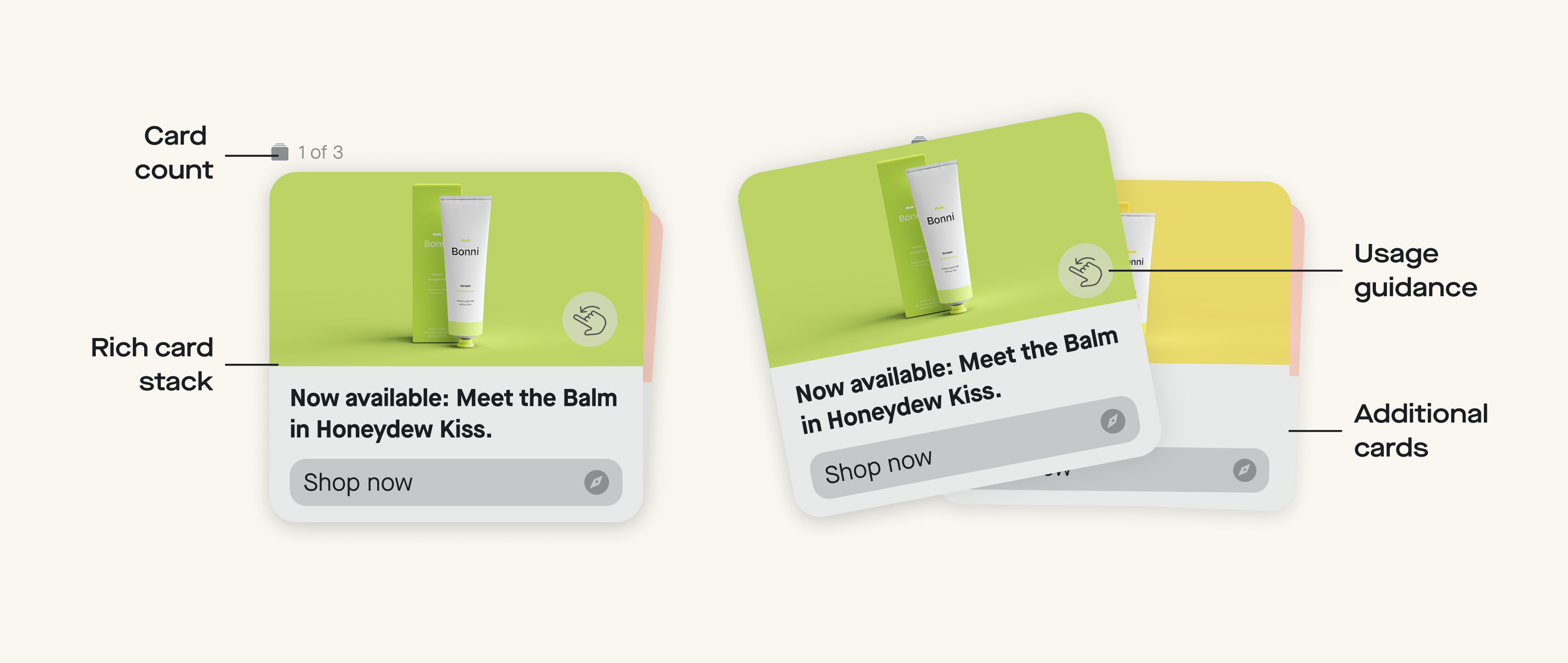
What are Carousels?
Carousels unlock a way to promote multiple products simultaneously in one “Rich Card Stack.” Since Carousels are essentially Rich Cards stacked on top of each other, they support the same media types, but have specific limitations around file sizing (see below).
When should you consider using Carousels?
Carousels work best when you have multiple, related products to promote. We recommend promoting products within the carousel that are simple, straightforward, and very easy to understand by a consumer who may only be scanning the message for a few seconds.
What to keep in mind when using Carousels:
Since Carousels are still a new media type for the majority of your audience on the text channel, we recommend editing swipe guidance into the first card shown in the Carousel (see the above image for an example).
Carousels can technically support up to 10 cards. The first Carousel card will receive the most engagement, add your best piece of content, here! We’ve seen that Carousels containing 5+ cards perform best. If you do decide to include more than 3-5 cards, we recommend using the link in your first and last card to link to the collection on your website.
While cards in a Carousel follow the same guidance as individual Rich Cards do, there are a couple notable differences regarding the media included:
Note: All media in a Carousel should be formatted to a 16x9 aspect ratio for best results, and a Carousel can support up to 100MB total of media. Supported media types include:
- Images (Up to 10MB): JPEG/JPG, PNG
- Video (Up to 10MB): M4V, MP4, MPEG, MPEG-4, WebM
Note: GIFs are currently not supported on RCS due to them not ‘autoplaying’ within the Apple phone UIs. We are working closely with our major partners on a resolution here, and will provide updates as this functionality is fixed.
Great use cases for Carousels include:
- New product bundle releases
- Bestseller promotions
- Category promotions
Before you send a Carousel:
| Best Practice | |
★ Header text is 80 characters or less (and tap-worthy!) Remember! Your message/header text is the most important part of your message. Assume that this is all a shopper will read, and make sure to optimize before hitting send. | |
| ★ Carousel is “cohesive” and tells a clear story that's easy to understand in a few seconds. | |
| Media file size (images or video) is <10 MB | |
| Total carousel file sizes add up to <100 MB | |
| Media file format is one of the following: JPEG/JPG, GIF, PNG, M4V, MP4, MPEG, MPEG-4, or WebM | |
| Media contains ‘swipe’ guidance | |
| Description text is 110 characters or less | |
| CTA (button text) is 25 characters or less | |
| Carousel contains 5+ cards |
Best Practices for RCS for Business Suggested Actions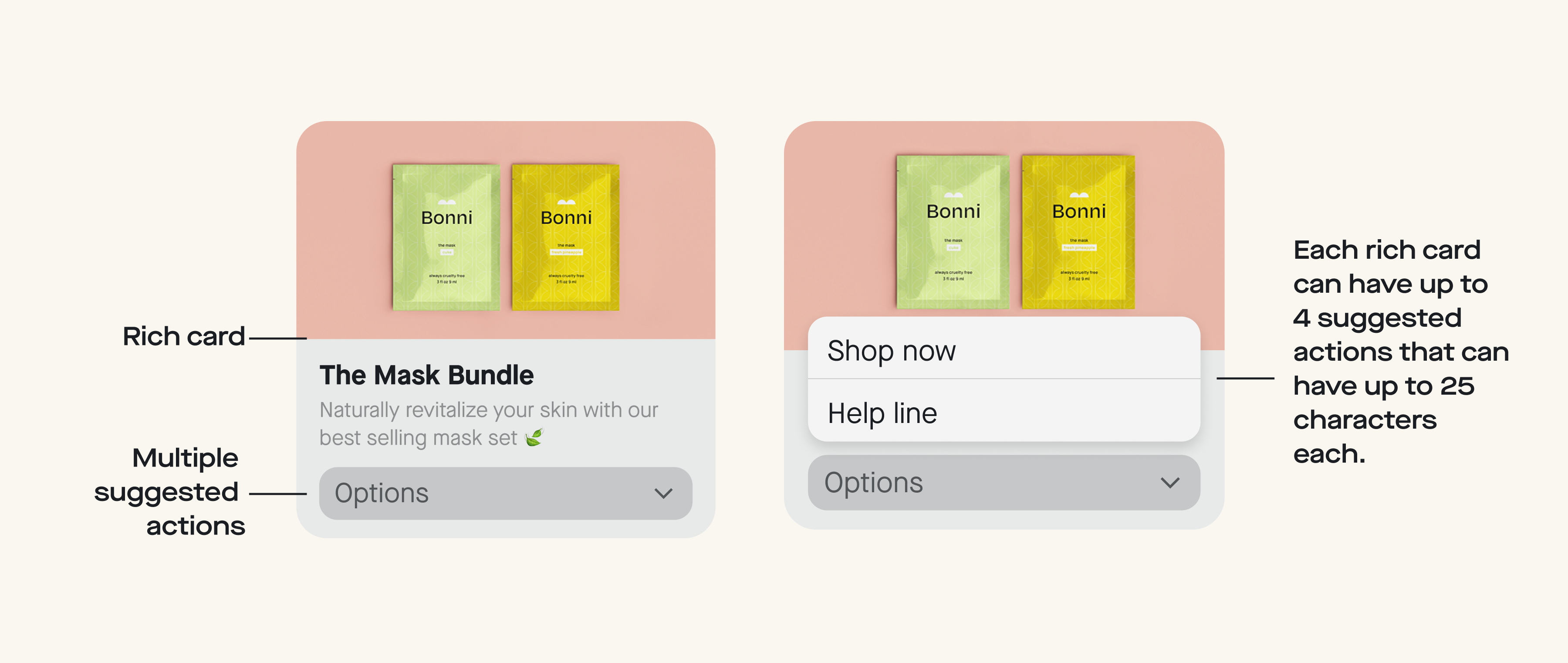
What are Suggested Actions?
Suggested actions are clickable buttons, either embedded in the rich media card or displayed separately, that make it easy for users to choose either one, or from multiple CTAs.
Note: While the above examples show multiple buttons, Suggested Actions themselves refer to either single, or multiple buttons embedded in Rich Media Cards.
When should you consider using Suggested Actions?
Suggested actions should be used in all Rich Media Cards that you send to your audience, as they provide a clear, clickable CTA directly in messages, and stand out from the other content included.
Multiple Suggested Actions are recommended when there are multiple ‘next best actions.’ These may include visiting your site, contacting a CX channel to gather more product context (i.e. sizing questions), visiting a rewards wallet, and more.
If there has been particularly high top-of-funnel shopper drop-off, consider incorporating multiple Suggested Actions into your next campaign to give customers the option to dig more into discovery before they add anything to their cart!
What to keep in mind when using Suggested Actions:
Approach copy for suggested actions the same way you would for any call-to-action on your website or in an email. Keep it short, clear, and specific about what action the subscriber will take (e.g., “Shop [product name]” to open a product page on your website).
When there’s more than one suggested action, iOS combines them into an ‘Options’ button. Tapping the ‘Options’ button opens a menu that shows each action. You can include up to four suggested actions, but we recommend using just one per card to reduce friction.
Our favorite examples of Suggested Actions include:
- Shop New Arrivals
- View My Picks
- See Bestsellers
- View Size Guide
- Chat with Support
- Ask a Question
- Write a Review
- Reorder Now
- Remind Me Later